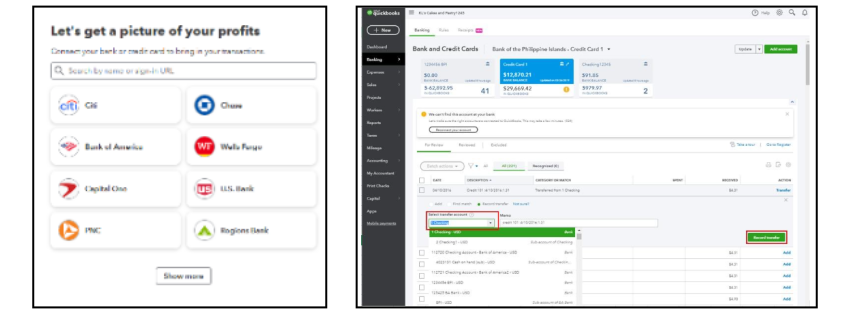
1. Connect a Bank or Credit Card Account
Steps:
- Go to Accounting from the left sidebar
- Click Bank Transactions under “All Apps” & “Accounting”
- Click Link account (top right)
- Search for the bank name
- Enter online banking login credentials
- Select the account(s) to connect
- Choose the correct Chart of Account to link to:
- If existing → select it
- If new → click Add new account
- Select how far back to pull transactions (usually 90 days)
- Click Connect
ELEVATE INSIGHTS
- Always confirm the account type (Bank vs Credit Card)
- Do NOT create duplicate accounts—match to existing COA whenever possible
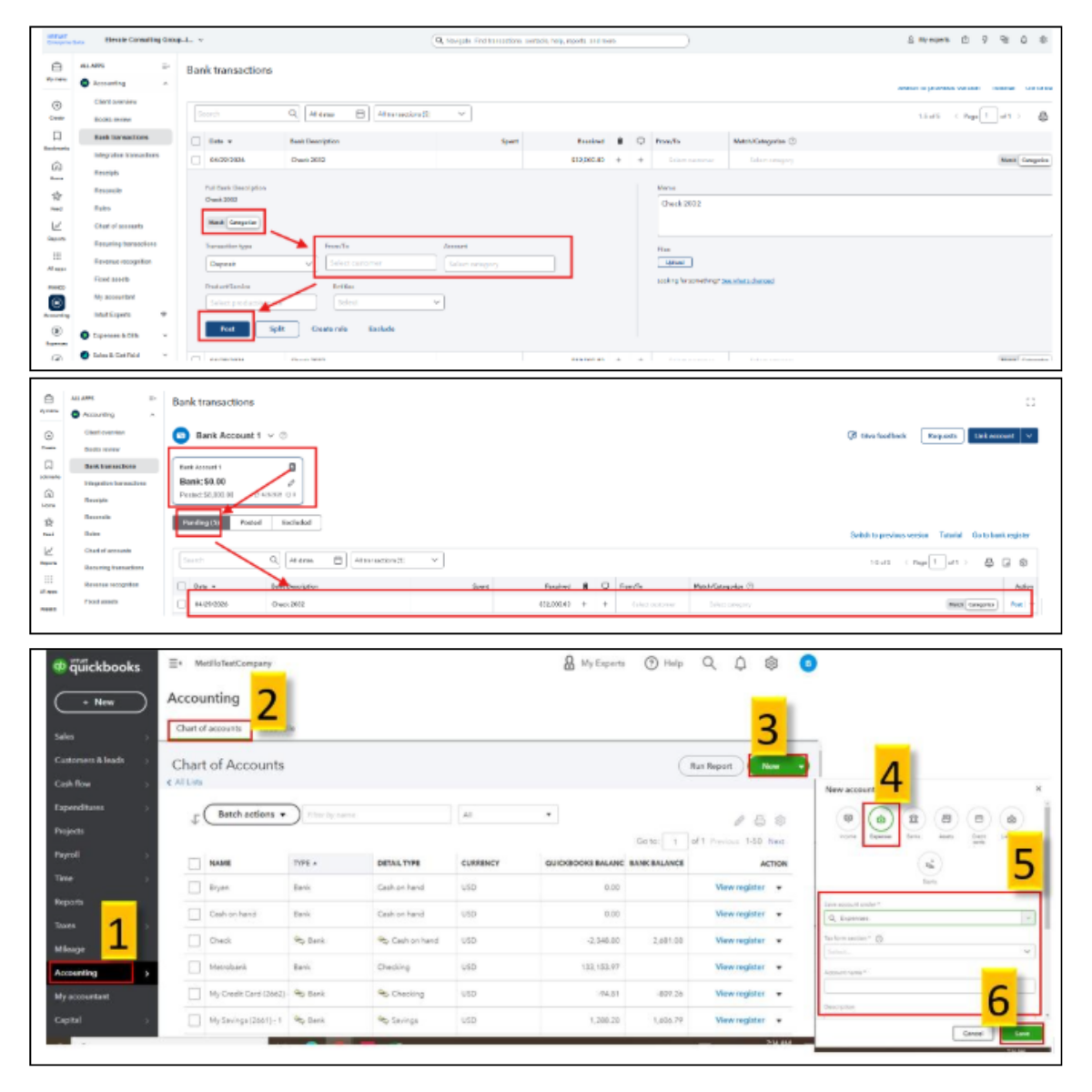
2. Understand the Bank Feed Screen
For Review | New transactions to categorize
Categorized | Already added/matched
Excluded | Ignored transactions (duplicates)
3. Review & Categorize Transactions
Steps:
- Go to Banking → For Review
- Click a transaction to expand details
- Review:
- Select the correct Category (GL account)
- Add or confirm Vendor/Customer
- Add memo if needed
- Click:
- Add (new transaction), OR
- Match (if already recorded), OR
- Transfer (if moving between accounts), OR
- Split (if recording transaction between multiple accounts)
4. Match Existing Transactions
When to Use Match:
- Bills already entered
- Transfers already recorded
- Payments already recorded
Steps:
- Click transaction in For Review
- Select Match
- Confirm details align:
- Amount
- Date
- Account
- Click Match
ELEVATE INSIGHTS
If the transaction already exists in QuickBooks Online, Match it — don't Add it.
5. Exclude Transactions
Use When:
Steps:
- Select transaction(s)
- Click Exclude
- Move to Excluded tab
6. Refresh Bank Feed
Steps:
- Go to Bank Transactions
- Click Update (top right)
ELEVATE INSIGHTS
Refresh daily or weekly as a best practice.
7. Troubleshooting Bank Feed Issues
- Click Update to refresh connection
- Re-enter login credential if disconnected
- Disconnect, then reconnect if feed breaks
8. Bank Feed Controls & Best Practices
DO
- Review transactions line-by-line
- Confirm automation suggestions
- Keep feeds clean weekly
DO NOT
- Bulk accept without review
- Trust rules blindly
- Let transactions pile up