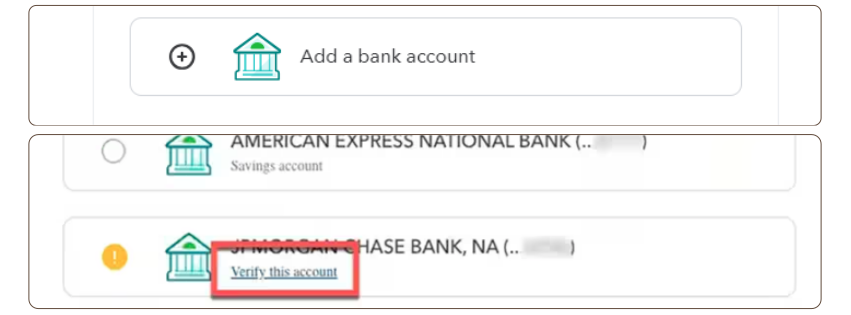
After you create a bill and select Schedule Payments, you can add or update the bank account you pay from.
Go to Select account to add a bank account.
If you have a bank account selected and you want to update to a different account, select Change account.
If you choose to Add a bank account:
Find and select your bank.
Enter your account’s user ID and password and we’ll connect it immediately.
If you need to enter your bank account info manually:
Select Enter account info manually.
Enter bank details and select
Within 3 business days, we’ll send you 2 small deposits. The amount will show up in your usual bank transactions.
Monitor your bank account for the 2 deposits from intuit. Once the deposits appear in your bank account, go back to schedule a payment for the relevant bill.
You’ll see the bank name and account number. Select Verify this account.