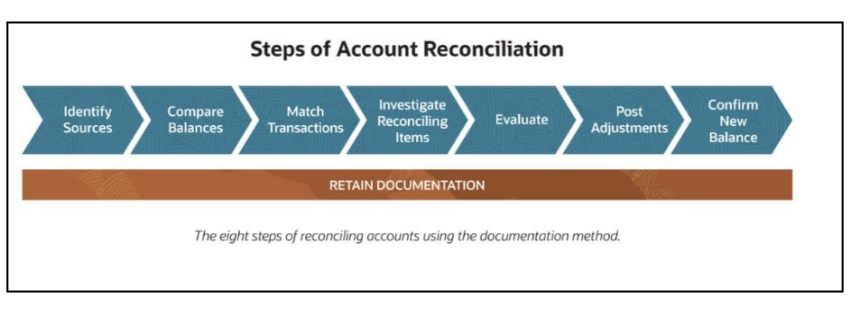
Definition:
Matching QuickBooks transactions to the bank statement to confirm:
- Nothing is missing
- Nothing is duplicated
- Balances are accurate
Goal:
👉 Difference = $0.00
2. Access the Reconciliation Tool
Steps:
- Go to Accounting → Reconcile
- Select the account
3. Enter Statement Information
From the Bank Statement:
- Ending Balance
- Ending Date
Steps:
- Enter ending balance
- Enter ending date
- Click Start Reconciling
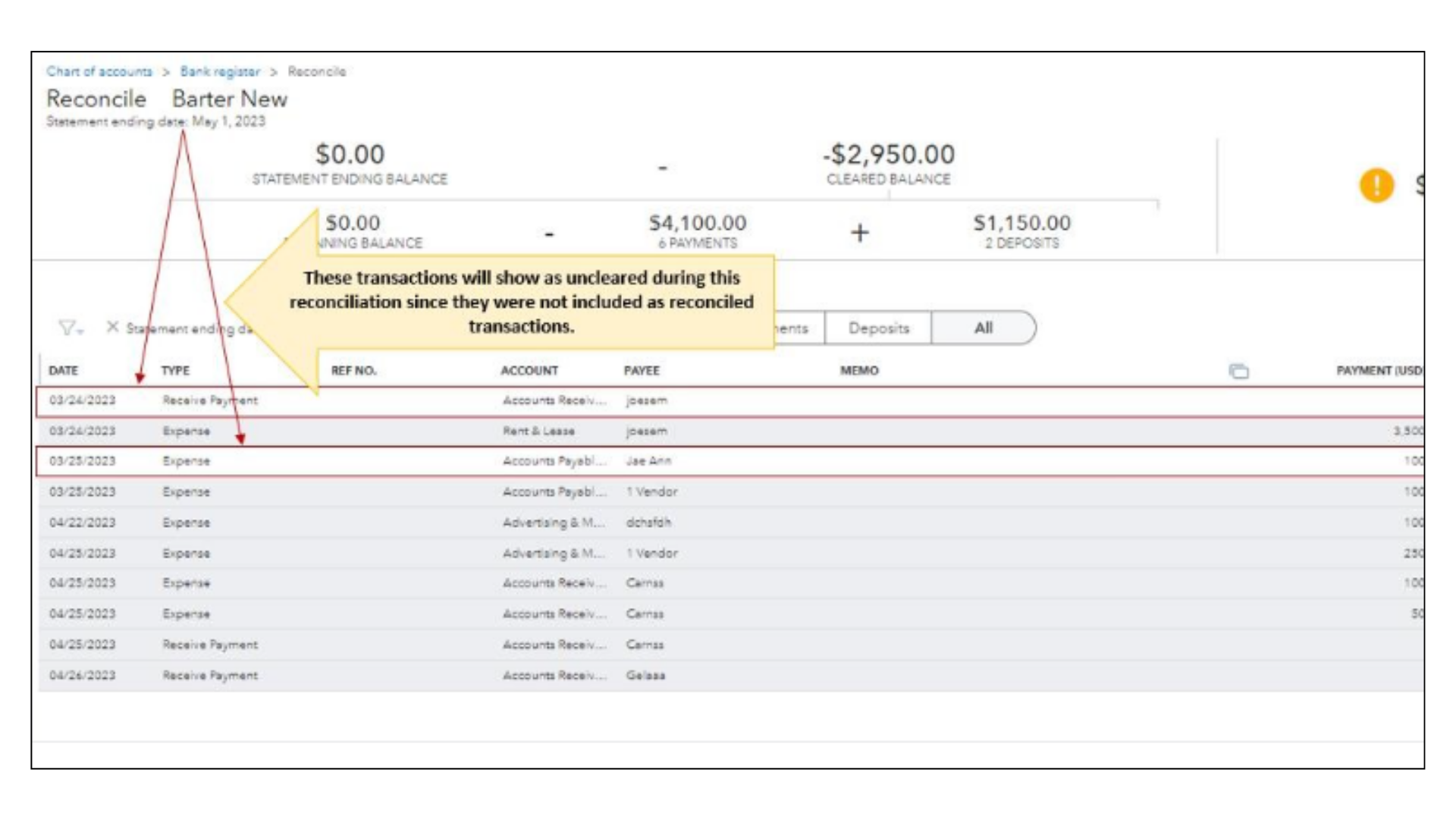
⚠️ Critical Check:
- Beginning balance must match prior reconciliation
- If not → STOP and investigate
4. Reconcile After Month is completed
Steps:
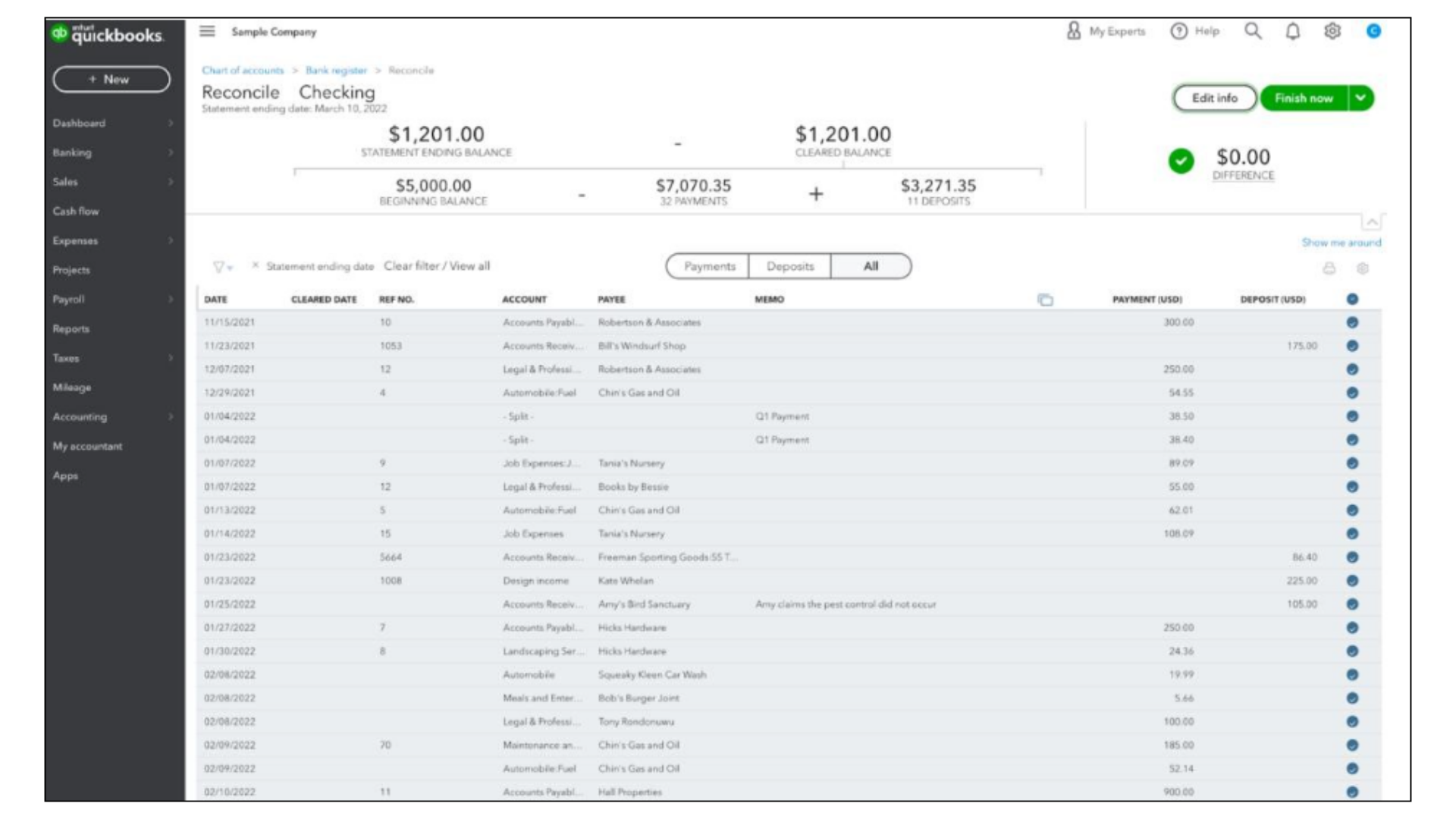
- Match transactions line-by-line:
- Check off transactions that appear on bank statement
- Watch the Difference number
Goal:
👉 Work until difference = $0.00
5. How to Match Transactions
Steps:
- In reconciliation screen
- Check transactions that match bank statement
- Confirm:
- Amount
- Date (can vary slightly)
ELEVATE INSIGHTS
- Sort by amount to find matches faster
- Use search if needed
6. What to Do If It Doesn’t Balance
Check for:
- Missing transactions
- Duplicate entries
- Incorrect amounts
- Wrong dates
Steps to Fix:
- Leave reconciliation screen
- Go to:
- Bank register
- Bank feed
- Fix issue
- Return to reconciliation
👉 Never force it to zero with a plug
7. Finishing the Reconciliation
Steps:
- Confirm difference = $0
- Click Finish Now
- Save reconciliation report
- (Optional) – add attachment to reconciliation in QBO