A billable expense is an expense you incur on your customer’s behalf when you perform a work for them. You can easily record and track billable expenses so your customer can reimburse them when they receive their invoice.
Turn on billable expenses
Go to Settings, then select Account and settings.
Go to the Expenses tab.
From the Bills and expenses section, select Edit ✎.
Turn on the following:
Show Items table on expense and purchase forms
Track expenses and items by customer.
Make expenses and items billable.
(Optional) Set up the following:
Markup rate
Billable expense tracking
Sales tax charge
Bill payment terms.
Select Save.
Enter a billable expense
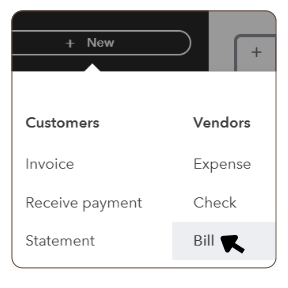
Select + New.
Select the transaction (Bill, Expense, or Check) you want to create.
Select the payee.
In the category column, select the expense account for transaction.
Enter the description and amount of the expense, then select the Billable Checkbox.
In the customer column, select the customer you want to bill for this expense.
(Optional) Enter or make sure the markup % is correct, then select the Tax checkbox or choose a tax agency if you want to charge tax.
Select Save and close.
Add billable expenses to invoices
To reimburse the cost, link the billable expense to your customer's invoice.
Select + New.
Select Invoice.
In the Customer ▼ dropdown menu, select the customer you created a billable expense for. This opens the Add to invoice window.
Select Add on the billable expense you want to charge to your customer.


%20(Medium%20Banner%20(US)%20(Landscape))%20(6).svg)