After uploading your receipts and bills to QuickBooks, they are not yet included in your books. Before that, you need to review, edit, add, or match them with existing transactions. Here's how you can do it.
On a web browser
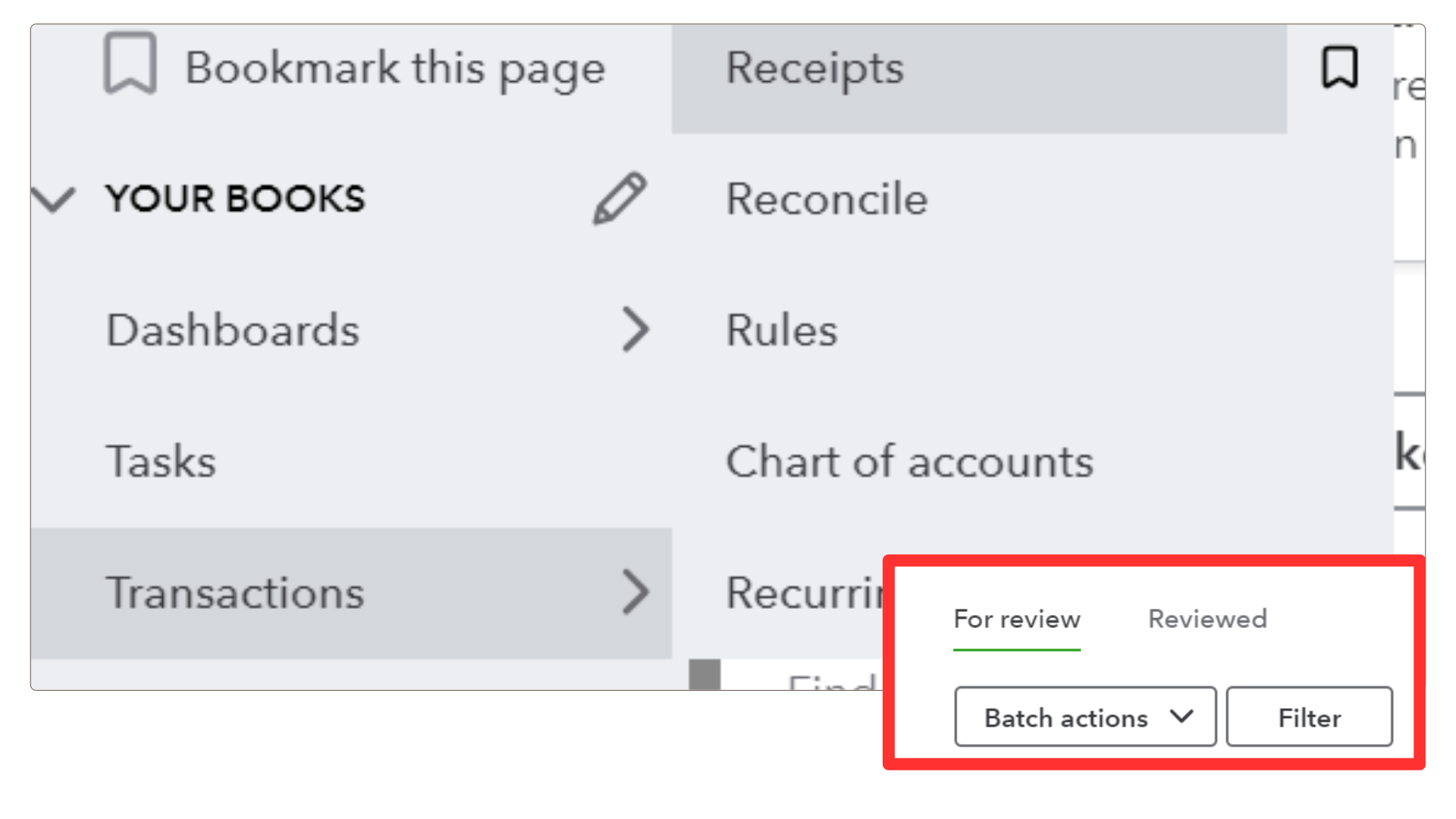
Go to Transactions, then select Receipts.
In the For review tab, you can review your uploaded receipts and bills. QuickBooks lets you know if it finds existing transactions in your books that match with your uploaded receipts or bills.
Check the labels in the Action column to find out what steps you need to take next.
Not Found
If QuickBooks can’t find an existing transaction that matches, you can create a new transaction from your receipt or bill.
Select Review to make corrections or add missing info.
Select Save and next.
Select Create bill or Create expense.
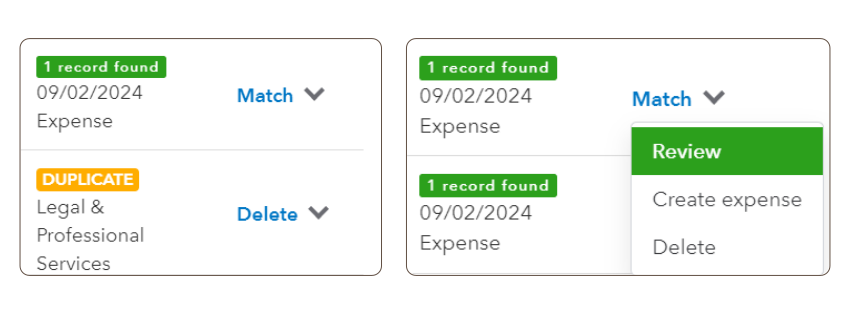
1 Record Found
It means QuickBooks found an existing transaction that matches your uploaded receipt or bill.
Select Match to connect your receipt or bill to the transaction right away. Or, if you wish to review the transaction, select the dropdown▼ next to Match, then select Review.
Make corrections or add missing info, then select Save and next.
Review the potential match.
Select Match to connect the receipt or bill to your existing transaction.
Duplicate Record Found
Select Review.
Make corrections or add missing info, then select Save and next.
Compare the potential matches, then select the correct bill or expense.
Select Match to connect it to the receipt or bill.