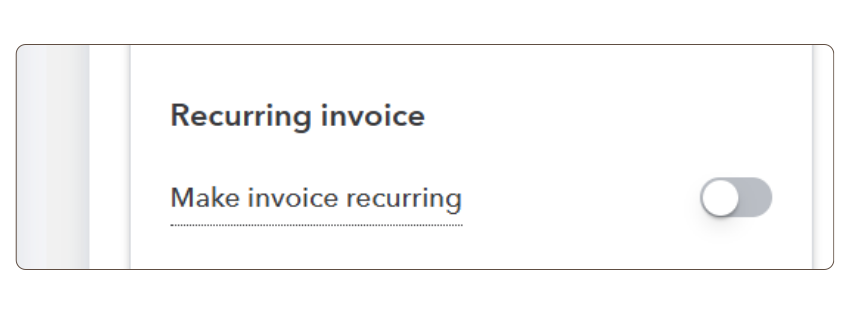
Create an invoice, then select Make recurring, or you can create a recurring template.
Go to Interval and select how often the invoice should recur.
Enter the start and end date of the recurring invoice.
Fill in the rest of the invoice then select "Save Template."
Autopay isn't available for recurring invoices with a Daily interval or for amounts over $5,000.
If you already have a recurring invoice setup, you don't need to create a new one.
Important: You can edit recurring templates with Autopay setup. If you change any of these fields, Autopay will be canceled.
Total Amount
Frequency
Terms
Payment Options
Email Address
Customer Name
If Autopay gets canceled, your customer will receive a cancelation email for future Autopay transactions.
Help your customers setup Autopay.
Autopay can only be setup for the full amount. If your customer edits the amount, then the Autopay option no longer displays.
Your customer needs their Intuit account to use autopay. If they don’t have an Intuit account, they’ll need to create a login.
To setup Autopay, your customer opens your invoice and selects Set up autopay to enroll.
Next, your customer will need to sign in using Intuit user ID.
Your customer makes sure the autopay checkbox shows as selected and displays the correct frequency and start date.
Once everything looks good, your customer selects the Autopay button to pay the current invoice. They’ll receive a confirmation email that Autopay is set up.
Check the autopay status of your customer
Go to Sales, then Invoices.
Find the invoice you wish to check for payment status.
Select the Status of that invoice to open the activity tracker panel.
Auto Payments Are Deducted:
3 days before the invoice due date
Immediately if less than 3 days, or due on receipt
As soon as the invoice is created by the recurring template, if the invoice is due on receipt
You’ll also receive an email confirmation for each successful payment.