1. What Is a Transfer (and When to Use It)
TRANSFER:
- Moving money between bank accounts
- Paying credit cards
- Moving funds between entities (same company books only)
- Recording internal cash movement
NOT A TRANSFER:
- It’s an actual expense (ex: rent, software, payroll)
- It’s income
2. Recording a Transfer Manually
Steps:
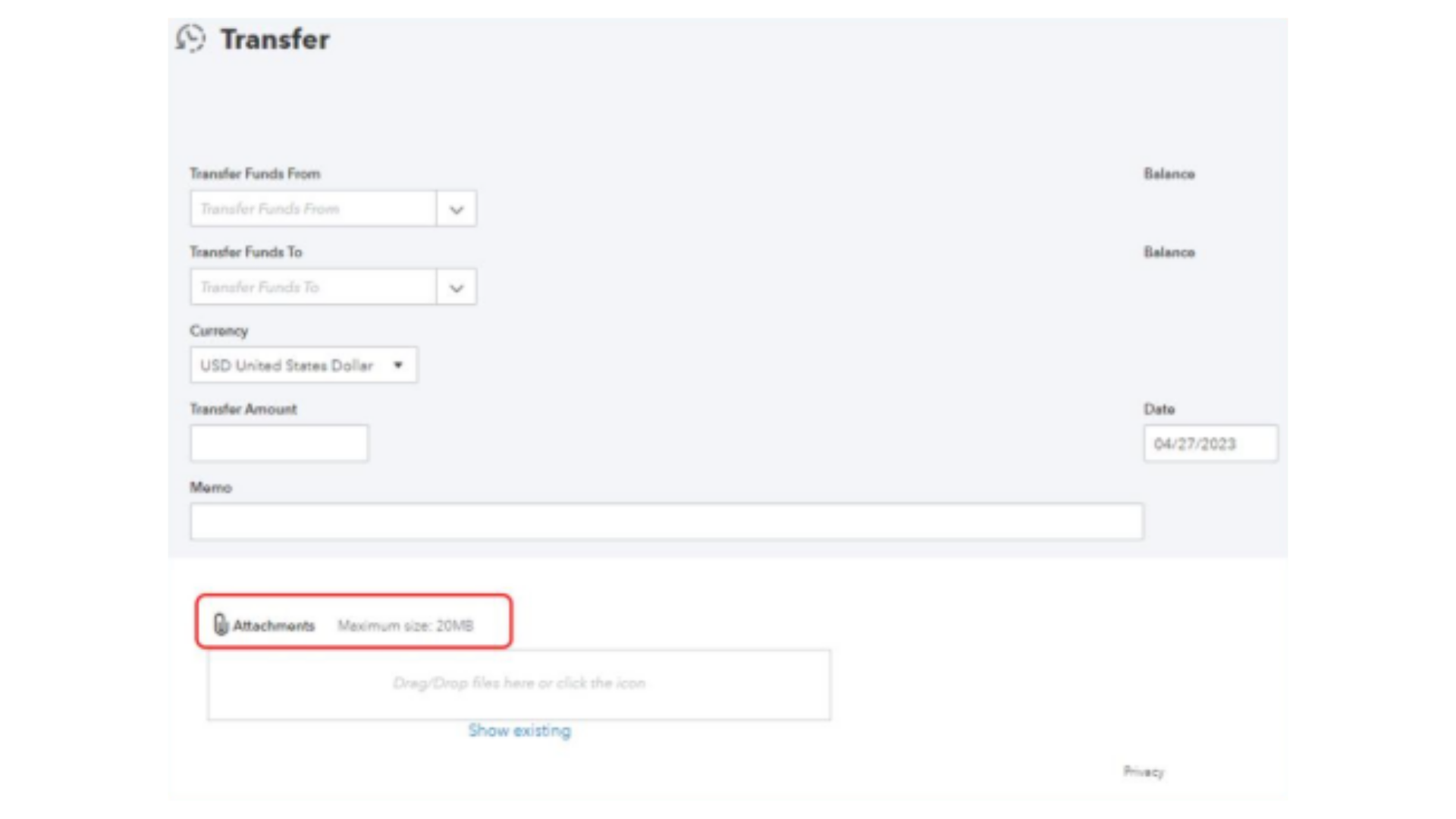
- Click + Create
- Select Transfer
- Enter:
- Transfer Funds From (bank account leaving)
- Transfer Funds To (receiving account)
- Amount
- Date
- Click Save and Close
What This Does:
- Reduces one account
- Increases another
- No impact to Profit & Loss
3. Handling Transfers in Bank Feed (Most Common Workflow)
Steps:
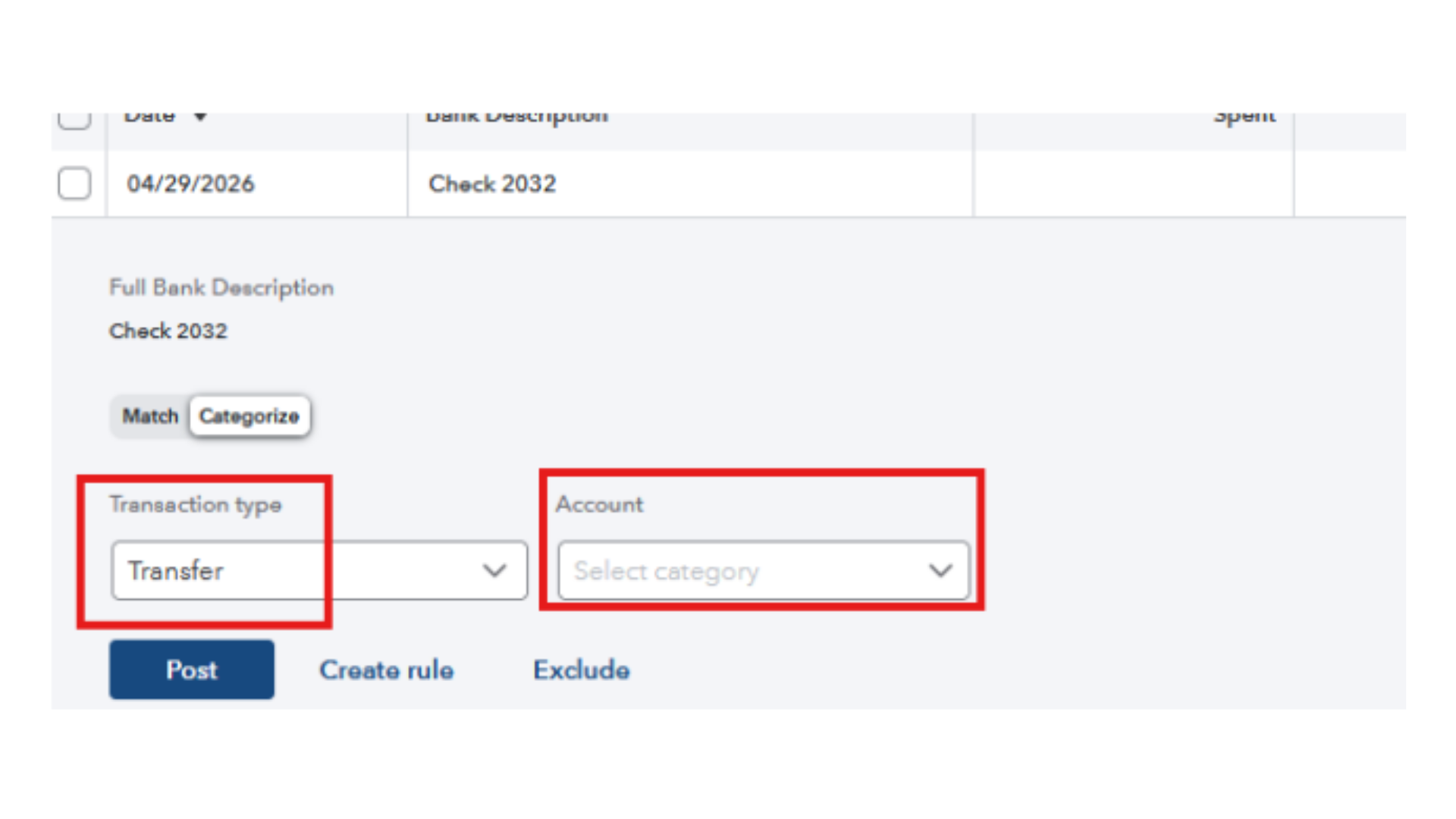
- Go to Bank Transactions → Pending
- Click transaction
- Select Transfer under “Transaction type”
- Choose the matching account
- Click Post
Then:
- Go to the other account’s feed
- Match the corresponding transaction
👉 If done correctly → both sides link automatically
4. Credit Card Payments (CRITICAL)
This is where people accidentally double count expenses.
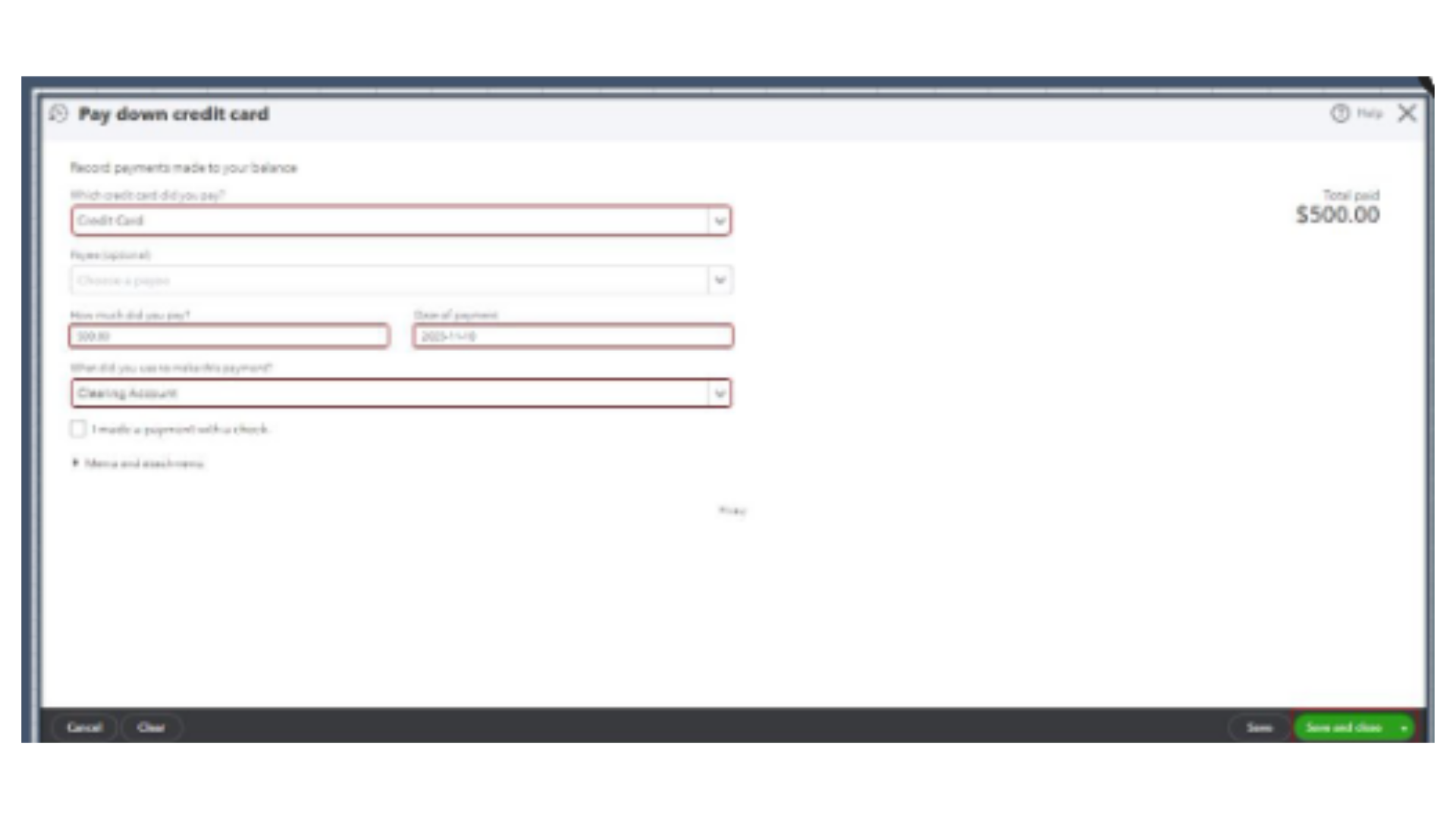
Correct Process:
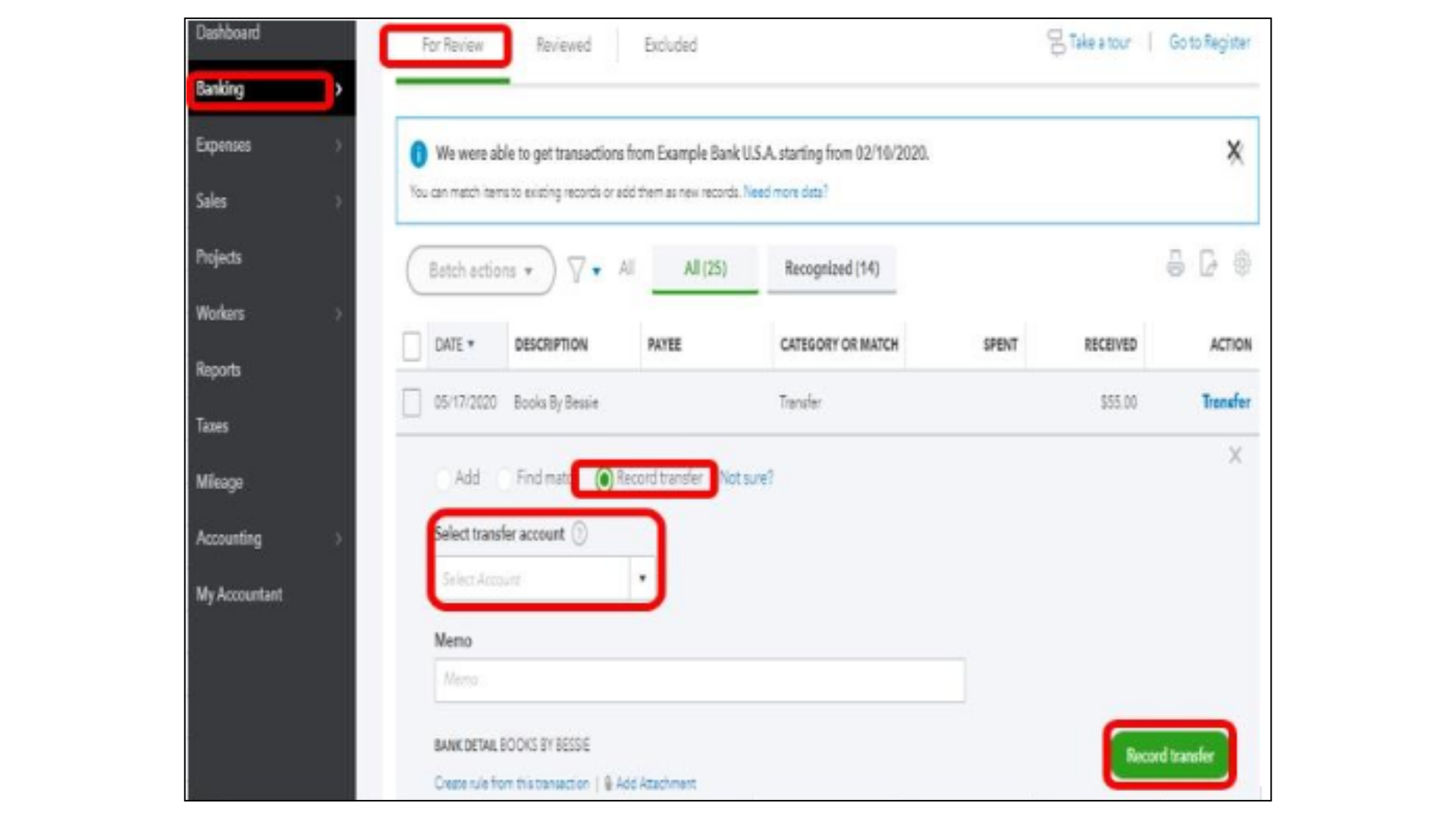
Step 1: Record Payment as Transfer
- Go to Bank transactions → For Review
- Click payment transaction
- Select Transfer
- Transfer from bank → to credit card account
- Click Add
Step 2: Match in Credit Card Feed
- Go to credit card account
- Find matching payment
- Click Match
Result:
- Credit card balance decreases
- No duplicate expense recorded
ELEVATE INSIGHTS
What Not To Do
- Categorize credit card payment as an expense
- This Creates:
- Duplicated expenses
- Overstated costs
5. Matching Transfers Correctly
Steps to Match:
- Click transaction
- Click Match
- Confirm details
- Save
Checklist Before Matching:
- Amount Matches
- Date is close
- Correct Accounts
6. Daily Sweeps (Advanced / Important for Your Clients)
What Is a Sweep:
- Automatic daily movement of funds between accounts
How to Handle in QBO:
Option A (Recommended):
- Record as Transfers daily or in batches
Option B (Cleaner for high volume):
Clearing Account Setup:
- Go to Chart of Accounts → New
- Type = Bank
- Name = “Cash Clearing”
Workflow Using Clearing:
- Sweep out → Bank → Clearing
- Sweep in → Clearing → Bank
- Net = $0 if correct
Why This Matters:
- Prevents clutter
- Keeps reconciliation clean
- Avoids duplications
7. Fixing Incorrectly Categorized Transfers
Scenario:
Transfer was coded as expense
Steps to Fix:
- Go to Posted tab
- Click transaction
- Click Undo
- Reclassify as Transfer
- Match correctly
8. Common Transfer Mistakes (Call These Out in Training)
- Coding transfers as expenses
- Missing one side of transfer
- Not matching both sides
- Credit card payments recorded incorrectly
- Ignoring sweep activity
9. Quick Validation Check
After processing transfers:
Run These Reports:
- Profit & Loss
- Should NOT include transfers
- Balance Sheet
- Accounts should reflect accurate balances