Accounts Payable: Schedule Multiple Payments
Back to all


Back to all
Summary:
How to Schedule Multiple Bill Payments
ELEVATE INSIGHTS
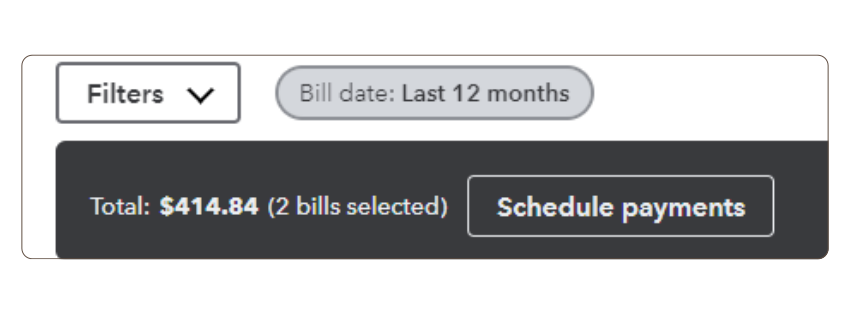
You can also select New then Pay Bills, mark the bills you want to pay, and then select Schedule payments.
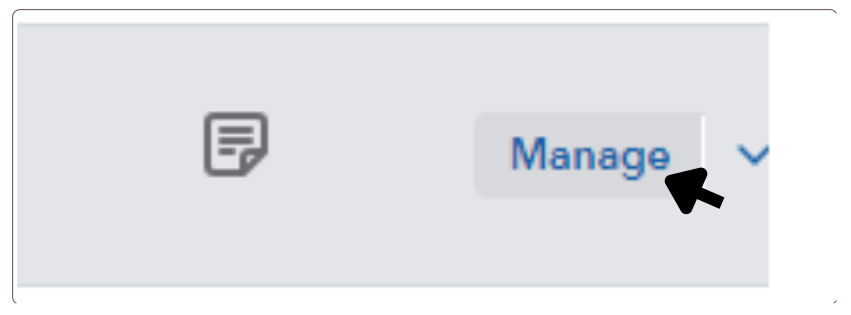
2. Select Manage for each payment to update the delivery details/withdrawal date. If the vendor already has delivery details, we’ll use them again.
ELEVATE INSIGHTS
If you update vendor details for one bill, the details will be updated for all other bill payments to the same vendor.
3. You can select apply to all to apply a withdrawal date to all payments in a batch.
4. Select continue.
5. Review the payment, then if everything looks correct, select Schedule payments.
ELEVATE INSIGHTS
1) You and your vendors will get email confirmations when bill payments are scheduled and processed.
2) You can see the status of all your Bill Pay payments on the Bill Pay payments page, (Expenses then Bills) page.