Confirm paired bank transfers and credit card payments
QuickBooks automatically identifies transfers between two of your connected bank accounts (including credit card accounts) by looking for matches in transfer amounts and dates. For example, if QuickBooks sees money leaving one bank account, and the same amount of money entering another bank account at around the same time, it'll suggest a record pairing that you can confirm or unpair. If confirmed, it'll mark that transaction as reviewed for both feeds.
Transfers & Matching
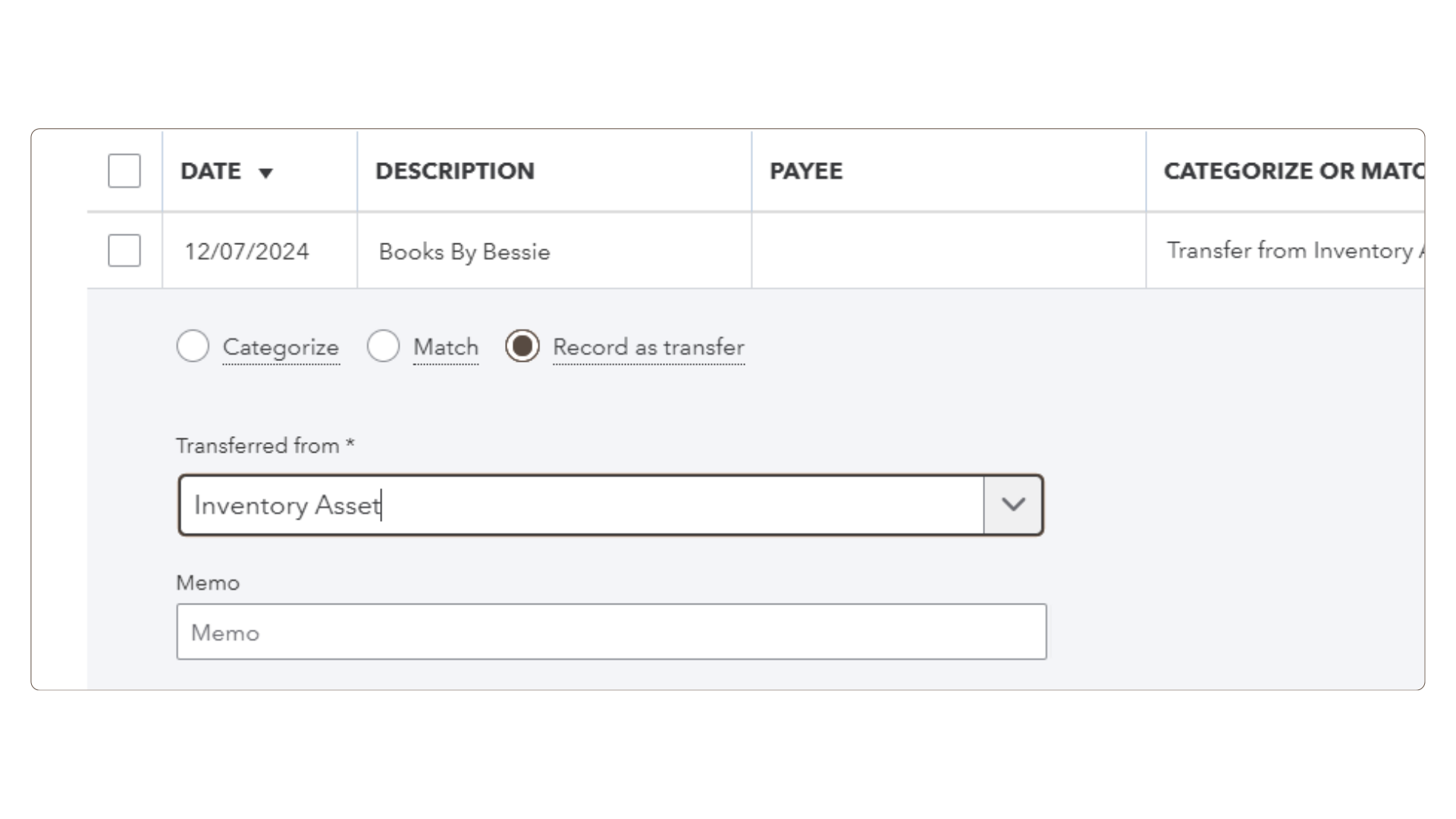
If the transaction is a transfer to another bank, credit card or loan account, select Record as Transfer at the top of the box. Then, select the account that it is going to/from, and hit Save. Make sure to double-check the other account to check the other side of the transaction is not duplicated and, in fact, hitting the other bank feed.
How to:
Go to Transactions, then select Bank transactions
Find a downloaded record.
In the Action column, select Confirm.
Recording a new transfer manually
Select + New.
Select Transfer.
From the Transfer Funds From dropdown list, select the bank account that the money is coming from.
From the Transfer Funds To dropdown list, select the bank account that the money is going.
From the Transfers Funds To dropdown list, select the bank account that the money is going to.
In the Transfer Amount field, enter the amount being transferred.
Edit the Date field.
Enter a description of the transfer in the Memo field (optional).
Select Save and close or Save and new to complete the transfer.
Select Yes if you double checked the date.
Record a transfer by cheque
If you used a physical cheque to transfer funds, here’s how to record the transfer and the cheque number:
Select + New.
Select Cheque.
Enter the cheque as you normally would, including the cheque number.
From the Bank Account field, select the account the funds are coming out of.
From the Category column, select the account the funds are going into.
Select Save and new or Save and close to record the cheque.
Match a transfer in your imported bank transactions
Once you’ve downloaded transactions from both accounts, you can categorize and match the transfer. First, record the transaction as a transfer from one account:
Go to Transactions and select Bank Transactions.
Select the bank account that the funds are coming from.
Find and select the transaction to open it.
Select Record as transfer, then, from the Transferred to dropdown, select the account where you transferred the funds.
Select Add.
Then, match the transaction from the other account:
Select the bank account where the funds are going.
Select the For review tab. Then, select the Recognized filter from the dropdown.
Find the transaction. From the Action column, select Match so the transaction is matched in both accounts.
Review or undo matches
After you match or add downloaded transactions, they're recorded into QuickBooks. Review your work and make sure everything is correct in the Categorized tab.
Go to Transactions, then select Bank transactions.
Select the tile for the account you want to review.
Go to the Categorized tab.
If you're in:
Business view: select a transaction that says Matched to or Added to in the Assigned to column to review it.
Accountant view: select a transaction that says Matched to or Added to in the Added or matched column to review it.
Select Undo if you need to make changes. The transaction is sent back to the For review tab.
Match with an existing transaction
Match means QuickBooks matched the downloaded transaction with one you already entered, like an invoice, a bill, a receipt, or a payment. This links them together so you don't get duplicates.
Go to Transactions, then select Bank transactions.
Find a downloaded record. If you're in:
BUSINESS VIEW: Look for "matches found" in the Assign to column.
ACCOUNTANT VIEW: Look for "matches found" in the Category or match column.
You can see what view you are in by selecting the gear icon in the upper right corner of QBO and looking at the blue text along the bottom of the pop-up.
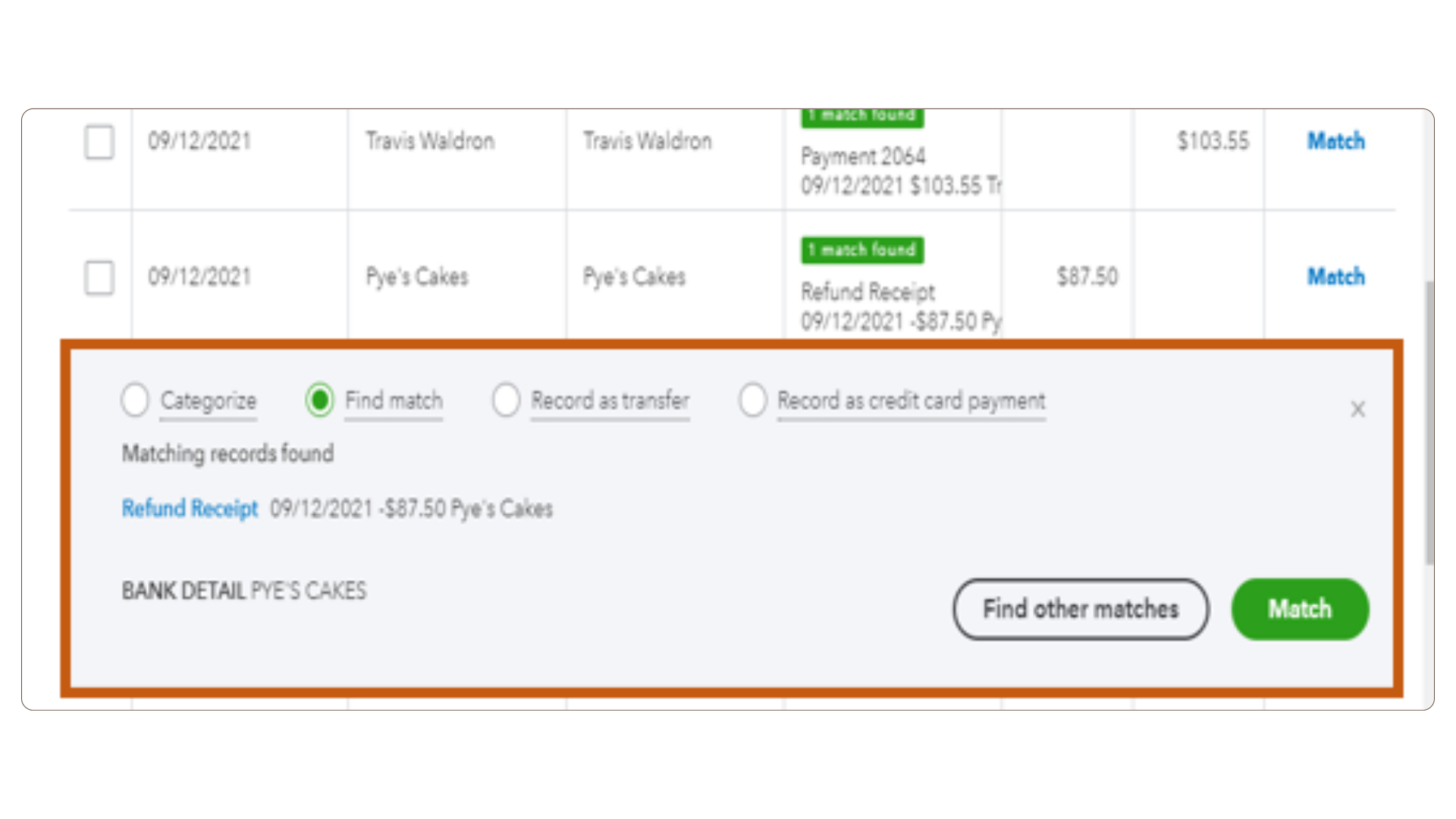
Select the downloaded record to expand the view. Note the date, Description (or Bank detail), and amount spent or received.
Review the Suggested matches for any possible matching transactions already entered in QuickBooks.
Select the link next to each match to get more details. Suggested matches will be the same amount as and from a similar date range as the downloaded transaction. Make sure that the match is correct.
If the suggested matches are not correct per the bank statement, select Find other matches to look for other transactions.
Select a match if it's correct, then select Match to match it.
QuickBooks now knows the downloaded record is the same one you already entered. It connects the two so there are no duplicates.
NOTE: If you have transactions without a match. Some transactions can’t find their match from existing records because:
The amounts or dates don’t match.
The transaction is older than 6 months.
The bank account on the payment isn't the same as the bank where the match is located.
The payment has been reconciled.
The record is already matched to another transaction.
Tip: You can still find a match when you select the Find other matches section.